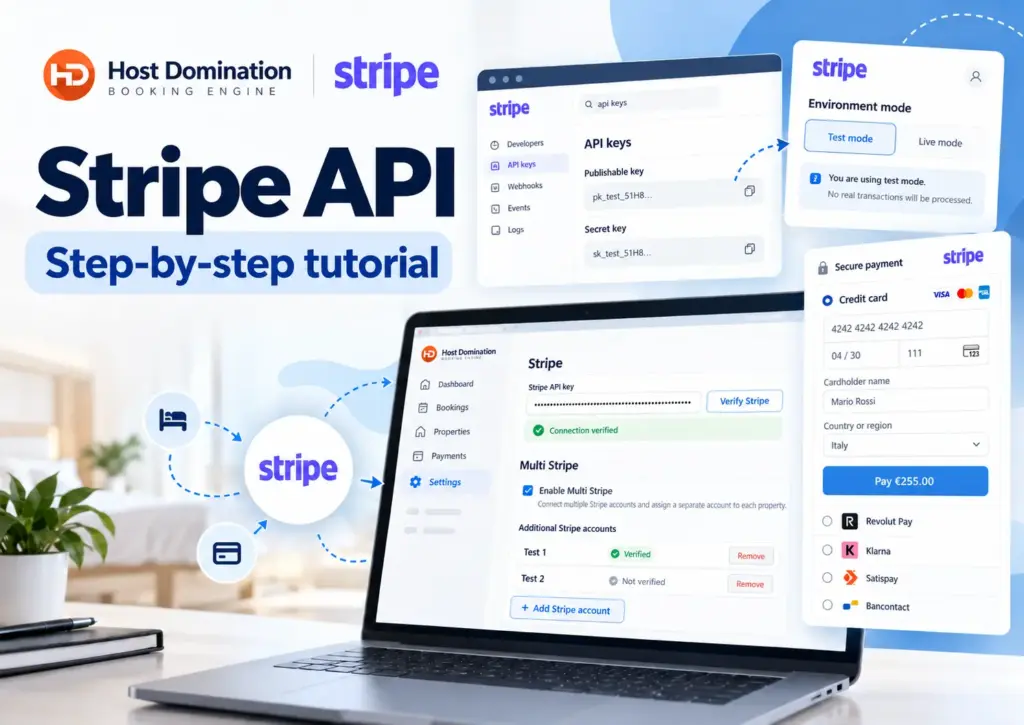

Complete step-by-step guide to setting up Stripe Sandbox, simulating bookings, and verifying how payments work without using real money.
You have just installed Host Domination Booking Engine PRO and want to make sure your Stripe payments are working properly before you start taking bookings?
Or do you use multiple Stripe accounts, manage multiple accommodations, or have you installed add-ons that change booking amounts?
Before activating real payments, it is always advisable to carry out some tests.
Thanks to the Stripe Test mode (Sandbox) You can simulate transactions, verify booking confirmations, and check that everything is working correctly, without making any real charges.
In this guide, you’ll learn how to:
- Enable sandbox mode on Stripe.
- Get your API Secret Test Key.
- Connect Stripe Test to Host Domination Booking Engine PRO.
- Set up and verify multiple accounts with Multi Stripe.
- Simulate a booking using a test card.
- Check that your payment and booking have been recorded correctly.
- Go live again to receive real payments.
1. Log in to Stripe and enable Sandbox Mode
First, log in to the official Stripe dashboard from here. Once logged in:
- Click your Stripe account name in the top left.
- Locate the entry Switch to sandbox.
- Select Test mode.
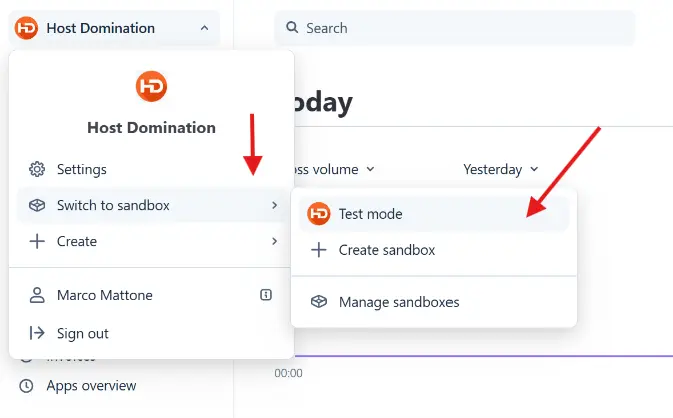
Image: How to activate Test mode from the Stripe dashboard.
If the option doesn’t look exactly like in the screenshot, you can go to the Sandboxes section and select an available test environment.
Once activated, an indication will appear in the dashboard confirming that you are using the Sandbox environment.
What is Stripe Sandbox?
It’s a separate environment from real payments, allowing you to simulate transactions, test integrations, and spot any issues before publishing your booking system.
Operations carried out in the Sandbox do not involve real money transfers.
2. Find the API Keys section
Now that you’re in Test mode, you need to retrieve the credentials needed to connect Stripe to the Booking Engine.
From your Stripe dashboard:
- Locate the search bar at the top.
- Write API keys.
- Select the result Developers → API keys.
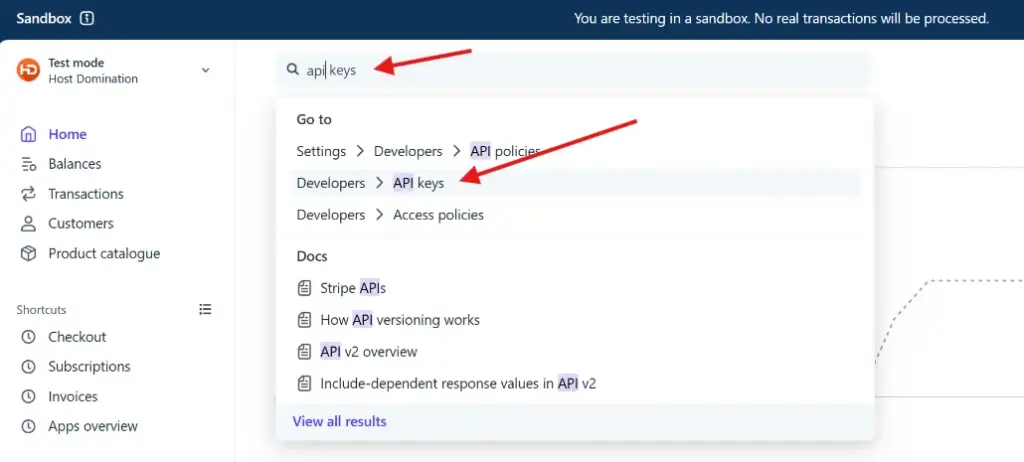
Image: How to reach Stripe’s API Keys section.
Alternatively, you can access it directly from here. Always make sure that you have selected the correct test environment.
3. Copy the Stripe Secret Test Key
Inside the page API keys you will find two main types of credentials in the Standard keys section:
- Publishable key: a public key that generally begins with
pk_test_. - Secret key: a secret key that starts with
sk_test_.
For the Stripe API key field in Host Domination Booking Engine PRO, you must use the Secret test key, i.e. the one that begins with sk_test_.
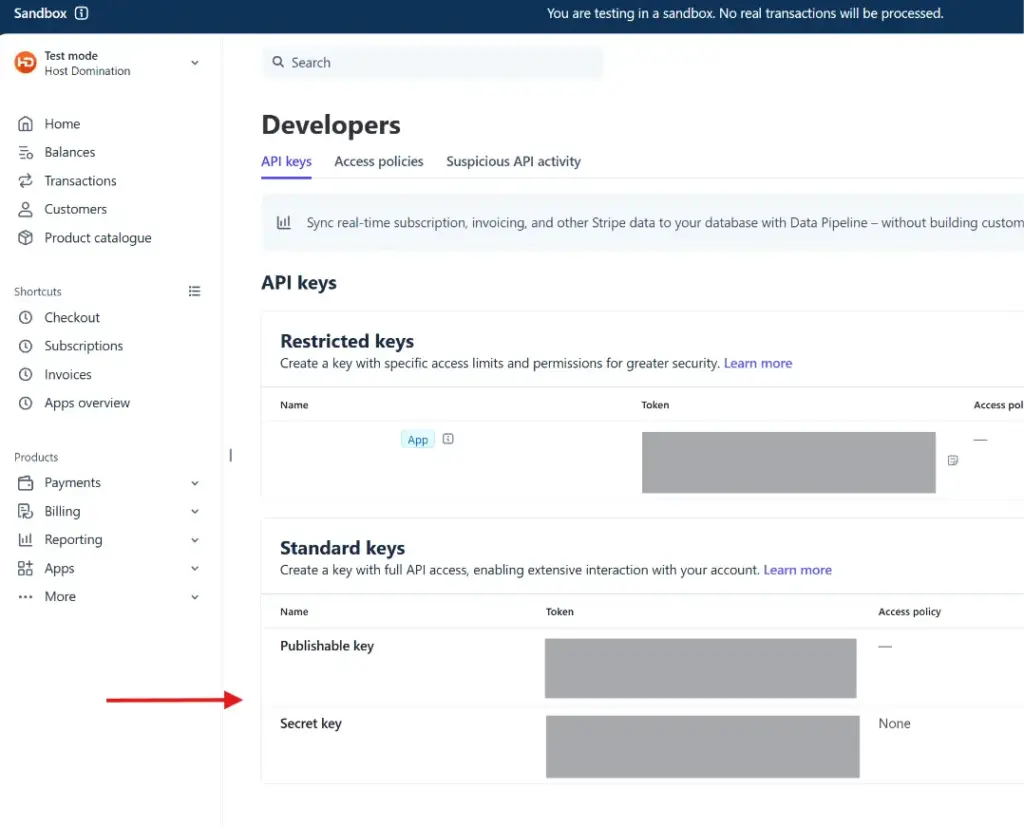
Image: Where to find the Secret Key in the Stripe Sandbox environment.
To copy it:
- Locate the row Secret key.
- Click on the option to view the key if necessary.
- Copy the complete credential.
A test key will look like this:
sk_test_XXXXXXXXXXXXXXXXXXXX
Please note: API Test and API Live are different
Stripe keys are distinguished by their prefix:
Important: Never share your Secret Key publicly, even through screenshots or insecure support requests. The Secret Key allows you to perform operations on the associated Stripe account.
4. Set up Stripe Test on Host Domination Booking Engine PRO
Now that you’ve got your Secret Key, you can set it up on Booking Engine.
Log in to your WordPress site’s admin panel and open the Host Domination Booking Engine PRO, in the section dedicated to Stripe.
Locate the field:
Stripe API key
Follow these steps:
- Enter the key
sk_test_that you copied from Stripe. - Save your settings.
- Click Verify Stripe.
- Wait for the result of the verification.
If the key is correctly recognized, the plugin will show a confirmation similar to:
✓ Stripe verified — TEST mode
This indicates that the plugin has recognized the credentials of the test Stripe environment.
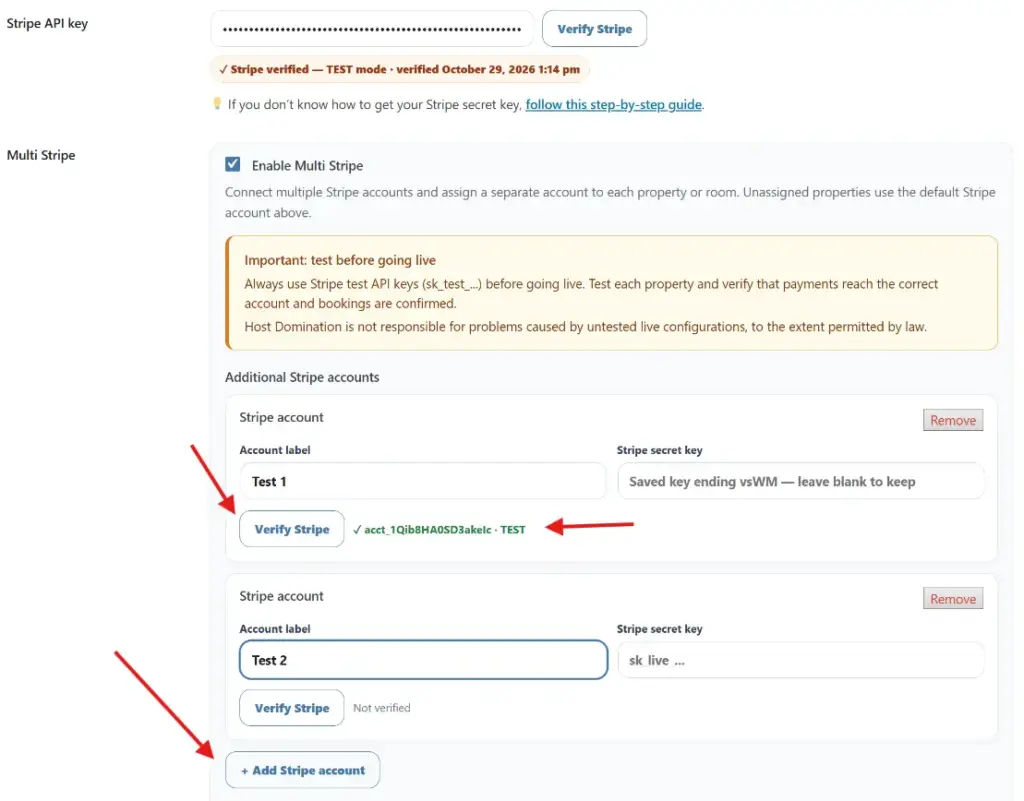
Image: Stripe Test key verification within Host Domination Booking Engine PRO.
Note: Key verification confirms the connection to your account, but it is not a substitute for a full payment test. You must also perform a fake reservation.
5. Do you use Multi Stripe? Verify each account separately
Host Domination Booking Engine PRO also allows you to use Multi Stripe, a feature that is especially useful for property managers, co-hosts, and managers of multiple accommodations.
With Multi Stripe, you can connect different Stripe accounts and assign each account to a specific property or room.
This way, each property can manage its payments through its owner’s Stripe account.
How to test Multi Stripe
If you use this feature:
- Activate Enable Multi Stripe.
- Click + Add Stripe account.
- Give your account a recognizable name, such as “Apartment Center.”
- Log in to the Sandbox of the Stripe account you want to connect.
- Copy the relevant Secret Key
sk_test_. - Enter it in the field Stripe secret key.
- Save the configuration and click Verify Stripe.
Repeat for each additional account.
After verification, the plugin can show the Stripe account identifier and the indication TEST.
Next, verify that each property is assigned to the desired account in the Multi Stripe settings.
Caution: properties without a specific account assigned to them use the default Stripe account.
For this reason, it is essential to verify both the allocations and the correct recipient of the simulated payments.
When testing, use keys sk_test_ for all accounts involved. Avoid mixing Test and Live credentials in the same verification process.
6. Make a test booking with Stripe
Once the setup is complete, the most important moment comes: simulate a full booking.
Open the page on your site that contains the Host Domination Booking Engine PRO public calendar.
Proceed as a normal guest would:
- Select an available property or room.
- Choose a check-in date and a check-out date.
- Indicate the number of guests.
- Add any extra services.
- Fill in the required details.
- Proceed to the booking and reach Stripe Checkout.
If the Test keys have been configured correctly, Stripe will show a simulated payment environment, usually identified by the wording Sandbox.
Which card to use for a test payment?
Stripe provides specially created card numbers to simulate payments.
To verify a successful transaction, you can use:
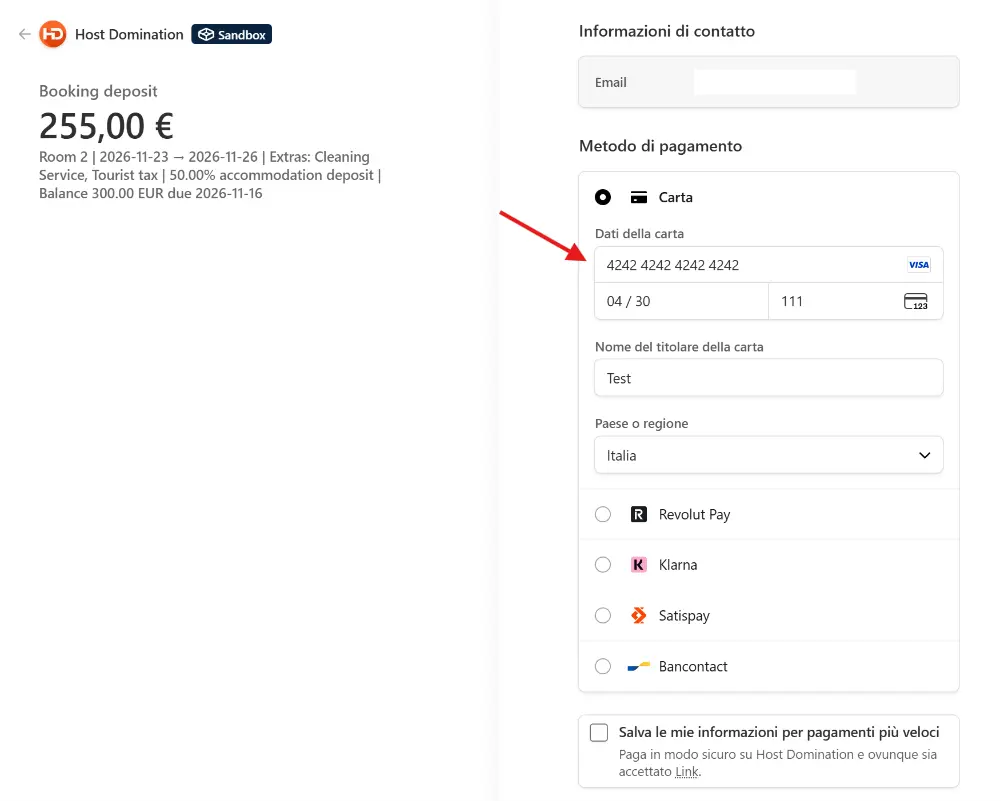
Image: Example of Stripe Sandbox payment during a booking made with Host Domination Booking Engine PRO.
After entering your details, complete the payment.
If everything is set up correctly, Stripe should process the simulated transaction and the Booking Engine should handle the outcome.
No real amount will be charged.
Do you want to test a declined payment as well?
You can make a second attempt using this test card:
4000 0000 0000 0002
This number simulates a declined payment.
It’s useful for verifying that a reservation isn’t mistakenly considered paid when Stripe returns an error.
The numbers are provided by Stripe’s official documentation and should only be used in the test environment.
7. Check that the booking has been confirmed correctly
Completing the test payment is only part of the verification.
To make sure the entire integration works, also check what happens after payment.
Verify in the Stripe dashboard
Return to the Sandbox of the Stripe account you used.
Open the payments or transactions section and look for the simulated payment you just made.
Check that:
- Payment is present.
- The amount corresponds to the amount shown during the booking.
- The transaction status is correct.
- The transaction is associated with the intended Stripe account.
If you’re using Multi Stripe, open the dashboard of the individual account assigned to the property and verify that the transaction was created right there.
Verification in Booking Engine
Now go back to the WordPress panel and check that:
- The reservation has been registered.
- The payment status has been updated correctly.
- The dates are occupied in the calendar according to the status of the reservation.
- The amount posted matches the payment you made.
- Any expected email notifications have been handled correctly.
If you’re using iCal sync, also make sure that the reservation is correctly included in the exported data and that the sync flow is working as expected.
Keep in mind: a payment that is visible on Stripe does not automatically mean that all subsequent steps have been completed correctly. Checking the status of your reservation is also crucial.
8. How to Test Service Extras, Deposit Payments, Coupons, and Promotions
If you’re using add-ons that affect pricing or payments, it’s a good idea to try it out with these features turned on as well.
For example:
Service Extras
Add a service such as cleaning, parking, or breakfast and check that the price is correctly included in the booking amount and in the Stripe Checkout.
Deposit Payments
Set up a percentage deposit and verify that Stripe requires the required amount. Also check the remaining balance and, if enabled, the relevant payment and notification procedures.
Coupons
Apply a discount code during the booking process and check that the total amount to be paid is updated correctly.
Promotions & Discounts
Activate a promotion and verify that the discount is applied to the calculation of the reservation and the amount to be paid.
An important tip for those who use Multi Stripe
If you’ve set up multiple Stripe accounts, make at least one test booking for each property, including the add-ons you normally use.
In particular, always check:
- The amount requested from the customer.
- The Stripe account that receives the simulated payment.
- Booking confirmation after payment.
This allows you to verify the operation of the entire process, not just the validity of the API keys.
9. How to switch from Stripe Test to Stripe Live
Have you completed all the tests and verified that your bookings are working correctly?
You can proceed to set up real payments.
To do this:
- Return to the Stripe dashboard.
- Select the Live environment instead of the Sandbox.
- Access the section Developers → API keys.
- Retrieve the Production Secret Key, which starts with
sk_live_. - Go back to Host Domination Booking Engine PRO settings.
- Replace the Test Secret Key with the Live Key.
- Save your changes.
- Click Verify Stripe.
- Check that the verification shows the live environment.
If you’re using Multi Stripe, also update individual account credentials and verify all assignments.
Important: before receiving real bookings, make sure that each Stripe account involved is operational and that any additional configurations, such as webhooks and payment methods, are also correct for the live environment.
10. Common Issues During Stripe Testing
Stripe doesn’t verify the API key
Make sure that the key has been copied entirely, that it does not contain any spaces, and that it is still valid.
Also check that it belongs to the Stripe account you want to use.
Stripe Checkout won’t open
Verify that Stripe is set up correctly, that the property is associated with the intended account, and that the site doesn’t have any miscommunication with Stripe.
The payment is successful but the reservation is still pending
Check that the payment was created in the correct Stripe account and that the Booking Engine received and handled the confirmation correctly.
If necessary, also check for any Stripe events and webhooks.
The payment is routed to the wrong account
If you’re using Multi Stripe, check the account assignment to the property.
Remember that unassigned properties use the default Stripe account. Also check that all add-ons involved are up-to-date and compatible.
4242 card not working
Make sure you’ve set up your test keys sk_test_ and not Live keys.
Stripe simulated cards should not be used for real payments.
Frequently Asked Questions
Can I test Stripe without spending any money?
Yes. The Stripe Sandbox mode allows you to simulate payments and transactions without transferring real money.
Do I need to create a second Stripe account to test?
You can use the test environment available in your Stripe account. If you use Multi Stripe with multiple separate accounts, you will need to retrieve the relevant test keys.
Can I use a real credit card in the Sandbox?
It is not necessary and is not recommended. For simulations, use only the test cards provided by Stripe.
Do Test APIs also work with Multi Stripe?
Multi Stripe can be configured with test credentials to verify the connection and operation of the different Stripe accounts associated with properties.
Does a test booking take up calendar dates?
It can. Even if the Stripe payment is simulated, the Booking Engine manages a booking on the site. It is therefore preferable to run the tests on a staging environment or on a dedicated calendar, subsequently eliminating the test bookings.
Can I leave the Test APIs active on my site?
Technically, yes, but you won’t be able to collect real payments through those keys. Before you make the system operational for guests, set up and verify Live credentials.
Conclusion: Always test Stripe before receiving real payments
Setting up Stripe on Host Domination Booking Engine PRO is simple, yet Verifying the entire booking flow before publishing is essential.
Using Stripe Sandbox, you can spot issues, check amounts, verify that bookings are confirmed correctly, and ensure that every payment is processed by the intended account.
These checks are especially important if you use Multi Stripe, manage multiple properties, or have installed add-ons that affect the total booking. You can also learn more about how the test environments work in the official documentation: