
To accept online payments with Stripe through Host Domination Booking Engine PROS, you need to connect your Stripe account by entering the relevant API Keys in the plugin settings.
The procedure takes a few minutes.
1. Log in to your Stripe account
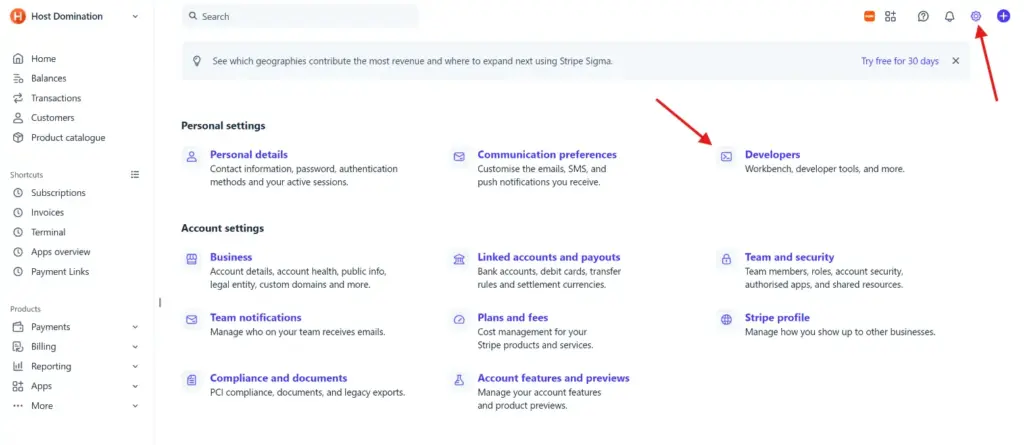
Access the Dashboard Stripe with the account you want to receive payments to.
Once you’re in, click the ⚙️ Settings in the top right.
2. Open the “Developers” section
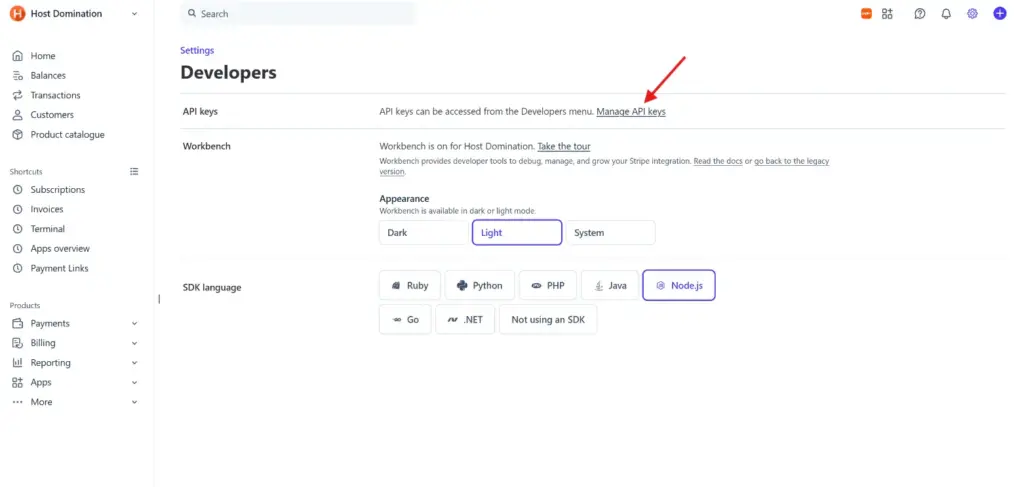
On the settings page, find the item:
Developers
and click on it.
Stripe may show this as Developers if the Dashboard is set in English.
3. Open API Key Management
Within the screen Developers, in the API keys, click on:
Manage API keys
You’ll be redirected to the page containing the API keys associated with your Stripe account.
4. Locate the “Standard keys”
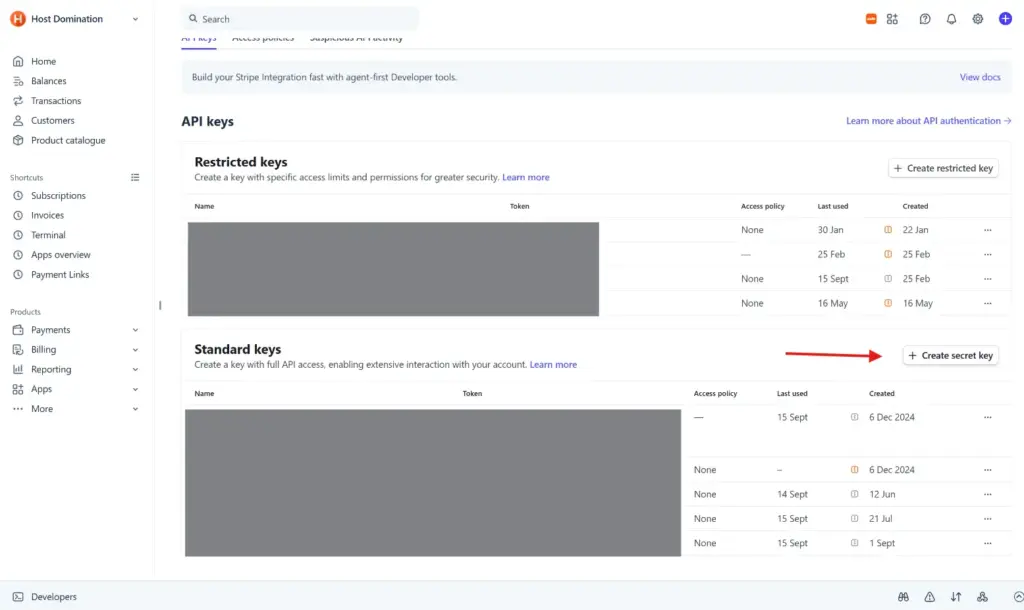
Stripe normally displays two sections:
- Restricted keys – keys with limited permissions
- Standard keys – standard account API keys
To configure Host Domination Booking Engine PROS, go to the section Standard keys.
Here you will also find your Publishable key and you can create the Secret key.
5. Create a new Secret Key
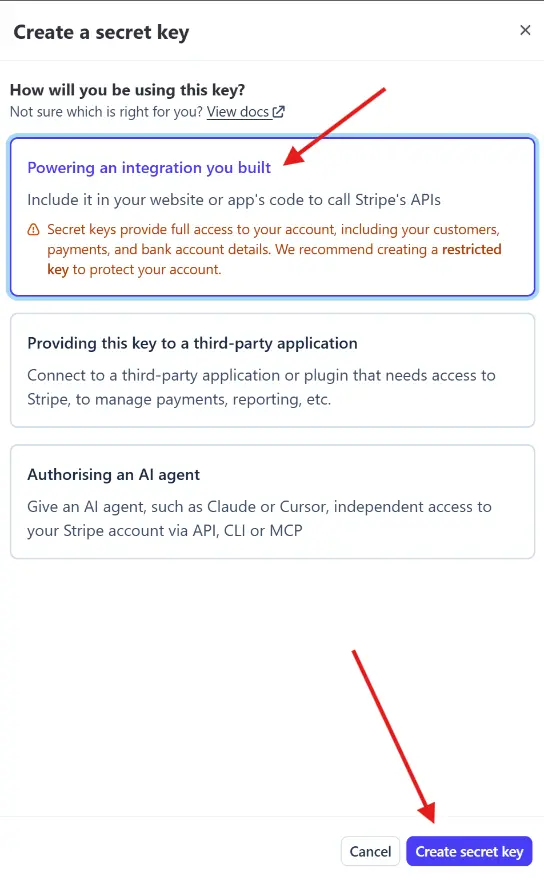
In the Standard keys, click the button:
+ Create secret key
A window will open asking you how you will use the key.
Select:
Powering an integration you built
This option indicates that the key will be used within an integration installed on your website.
Then click on:
Create secret key
Stripe may require a security verification before displaying the key.
6. Copy the two Stripe keys
To connect Stripe to Host Domination Booking Engine PRO, you’ll normally need these two keys:
| Key | Example |
|---|---|
| Publishable Key | pk_live_... |
| Secret Key | sk_live_... |
The Publishable Key can be viewed from the API Keys page.
The Secret Keyinstead, it must be copied when Stripe shows it after creation.
Important: The Secret Key is a private credential. Don’t send it via email, WhatsApp, public tickets, or screenshots, and don’t post it on your site.
7. Insert the keys into Host Domination Booking Engine
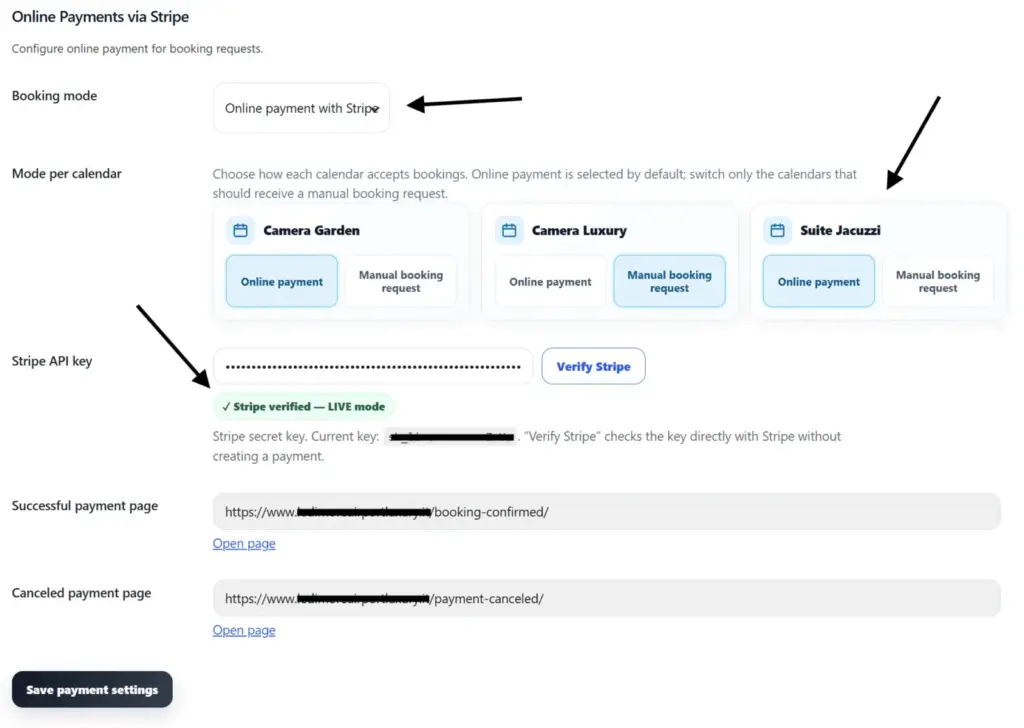
Access now the WordPress Dashboard section of your site and open the Host Domination Booking Engine related to Stripe payments.
Enter:
Stripe Publishable Key → the key that starts with pk_
Stripe Secret Key → the key that starts with sk_
Then save your settings.
At this point, Host Domination Booking Engine will be authorized to communicate with your Stripe account to process booking payments.
Test Mode and Live Mode
Be careful about the Stripe mode used.
Real keys generally start with:
pk_live_...sk_live_...
The keys used to perform tests instead start with:
pk_test_...sk_test_...
If you want to receive Real payouts, then make sure you use the keys LIVE and that your Stripe account is fully activated.
Beware of the Secret Key
The Secret Key allows API access to your Stripe account and should be treated like a password.
Host Domination Booking Engine uses it exclusively server-side to communicate with Stripe. Never manually insert it into public pages, HTML code, or JavaScript on your site.
Once the configuration is complete, it is recommended that you make a Test booking to verify that the payment is correctly recorded on both Host Domination Booking Engine and the Stripe Dashboard.