
Step-by-step guide to activate, customize, and use your AI virtual assistant on WordPress.
Do you want to offer your guests automatic assistance, available 24 hours a day, directly on the website of your holiday home, B&B, apartment or hotel?
With Host Domination Concierge AI – Virtual Assistant, the free add-on of Host Domination Booking Engine, you can add a smart chat that can answer guests’ questions, provide information about your property, check availability through the Booking Engine, and direct visitors to direct booking or WhatsApp.
In this guide, we’ll look at how to configure all the features, from the API key to customizing the chat.
STEP 1 – Install and activate Concierge AI
Before you begin, make sure you have installed and activated Host Domination Booking Engine on your WordPress site.
- Log in to your WordPress dashboard.
- Open Host Domination Booking Engine.
- Access the section Add-ons.
- Search Concierge AI – Virtual Assistant or click here.
- Download and activate the free add-on.
After activation, a new section dedicated to the virtual assistant will appear in your Host Domination Booking Engine. You will find three main areas:
- AI Assistant: AI configuration and chat appearance.
- Property & FAQs: Property information and FAQs.
- Booking Links: links to book on the website or via WhatsApp.
STEP 2 – Set up AI Assistant
Open the section AI Assistant. Here you can configure how your virtual assistant works.
2.1 – Enable Concierge AI
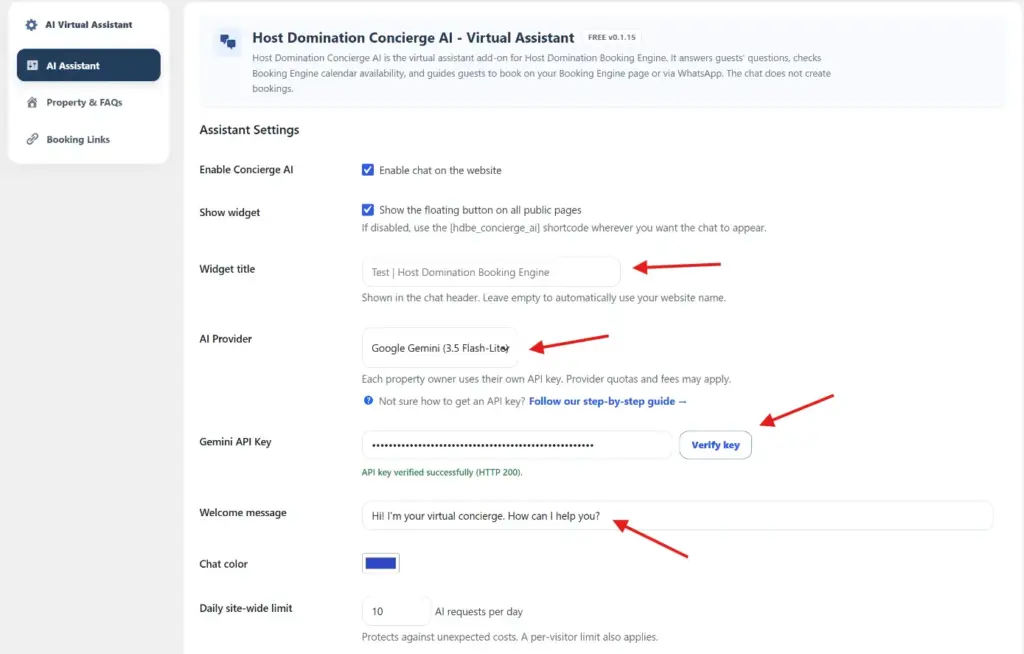
Activate the box Enable chat on the website to enable the assistant to work.
2.2 – Show widget
Enable Show the floating button on all public pages if you want to show the chat button on all public pages of the site.
If you prefer to see the Assistant only on specific pages, turn this option off and use the shortcode:
[hdbe_concierge_ai]
You can put it on the homepage or booking page, for example.
2.3 – Title widget
In the field Widget title You can customize the title shown at the top of the chat.
Examples:
- Domus B&B – Virtual Assistant
- Welcome to our Apartment
- Your Holiday Assistant
If you leave the field blank, the plugin automatically uses the name of your WordPress site.
2.4 – Free AI Providers
On the menu AI Provider Choose the AI service you want to use.
For example, you can select Google Gemini and one of the templates available for free, such as Flash-Lite. The availability of the templates and any additional costs depend on the provider and API plan used, but Google offers a monthly free fee.
STEP 3 – Get and connect Google Gemini or OpenAI API keys
You can choose whether to activate OpenAI or Google Gemini API Keys. The latter offers a free plan.
Get Google Gemini API keys
To use Google Gemini you need to configure a personal API key, which allows the plugin to communicate with the artificial intelligence service. For more details see also our guide to get a free Google Gemini API Key or follow the next steps.
How to get the API key:
- Open Google AI Studio.
- Sign in using your Google account.
- If prompted, accept the terms of service.
- Open the section API Keys.
- If you don’t already have a key available, click Create API Key.
- Select or create a Google Cloud project.
- Copy the generated API key.
Now go back to your WordPress site.
In the panel AI Assistant, locate the Gemini API Key and paste the key you just copied.
Click the Verify key to check its operation.
If everything is correct, you’ll see a confirmation message similar to:
API key verified successfully (HTTP 200).
Your key is configured correctly!
Is Google Gemini free?
Google provides a free API tier for certain models, subject to usage limits. You don’t need to activate a paid plan when the selected model and project are eligible for the free tier.
Limits, costs, and conditions may change. Always check the information available in Google AI Studio.
Important: Don’t share your API key publicly or put it in the site’s visible content.
Get OpenAI API keys
OpenAI offers a pay-as-you-go plan, and to get the api keys, you can follow This guide.
STEP 4 – Customize message, colors and limits
Also in the AI Assistant, you can configure some additional settings.
4.1 – Welcome message
The field Welcome message Allows you to customize the initial message displayed when a visitor opens the chat.
For example:
“Hi! I’m your virtual concierge. How can I help you?”
Or:
“Welcome! I am your virtual assistant. I can help you with information, availability and reservations.”
We recommend that you use a short, simple, and welcoming message.
4.2 – Chat color
Through Color chat You can choose the accent color of the interface, adapting it to the style of your site.
The color you select is used to customize the graphics of the chat, such as buttons and messages.
4.3 – Daily site-wide limit
This setting allows you to define the maximum number of overall daily AI requests on your site.
For example, setting the value 10, limits the total daily AI requests handled by the plugin to 10.
This is useful for controlling API usage and reducing the risk of unexpected consumption.
There is also a limit per visitor.
Remember that the plugin limit is distinct from any quotas applied by the AI provider.
When you’re done, click Save Settings.
STEP 5 – Configure Property & FAQs
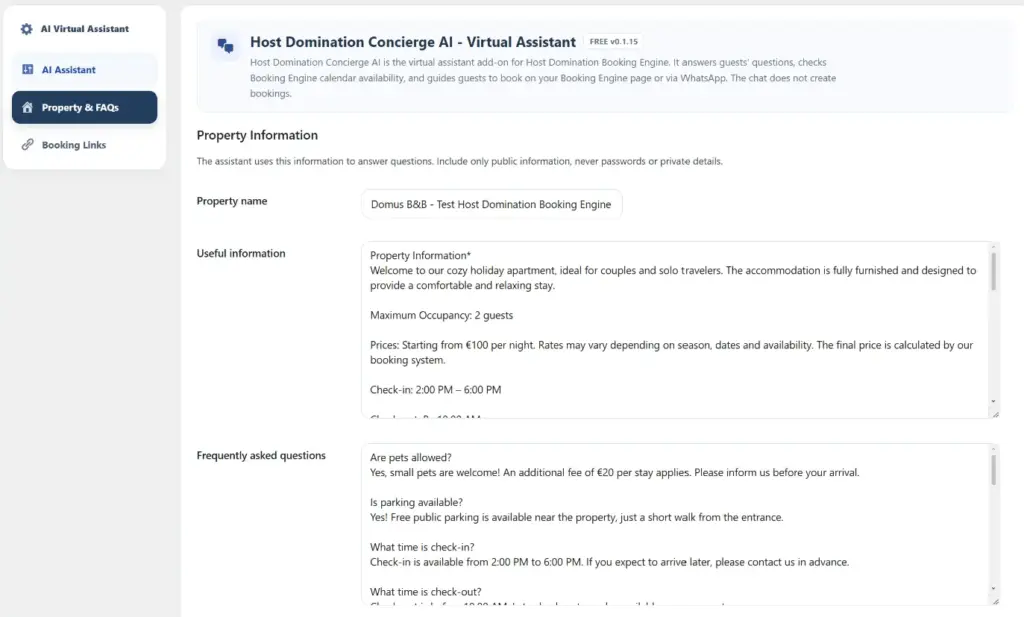
This is one of the most important sections: it allows you to provide the AI with the information it needs to respond correctly to guests.
Open Property & FAQs.
You will find three main fields.
5.1 – Property name
Enter the name of your accommodation.
For example:
Domus B&B – Holiday Apartment
5.2 – Useful information
In the field Useful information You can write down all the useful information that the Assistant needs to know.
For example:
Property Information
Welcome to our cozy holiday apartment, ideal for couples and solo travelers.
Maximum occupancy: 2 guests.
Prices: Starting from €100 per night. Final rates depend on dates and availability and are calculated by our booking system.
Check-in: From 2:00 PM to 6:00 PM.
Check-out: By 10:00 AM.
Parking: Free public parking near the property.
Wi-Fi: Free Wi-Fi is available throughout the apartment.
Location: The property is conveniently located near restaurants, shops and public transport.
You can add information about amenities, hours, house rules, transportation, location, and any other details that guests may need.
Suggestion: Write accurate and up-to-date information. The more reliable details you provide, the more relevant your Assistant can answer.
Do not enter Wi-Fi passwords, credentials, confidential access codes, or other personal and sensitive data.
5.3 – Frequently asked questions
The field Frequently asked questions allows you to add frequently asked questions and their answers.
For example:
Are pets allowed?
Yes, small pets are welcome! An additional fee of €20 per stay applies. Please inform us before your arrival.
Is parking available?
Yes! Free public parking is available near the property, just a short walk from the entrance.
What time is check-in?
Check-in is available from 2:00 PM to 6:00 PM. If you expect to arrive later, please contact us in advance.
What time is check-out?
Check-out is by 10:00 AM.
Is Wi-Fi available?
Yes, free Wi-Fi is available for all guests.
You can add as many questions and answers as you find useful, breaking them down into paragraphs to keep them easy to read.
The assistant will use this information to answer questions from guests during the conversation.
STEP 6 – Configure Booking Links
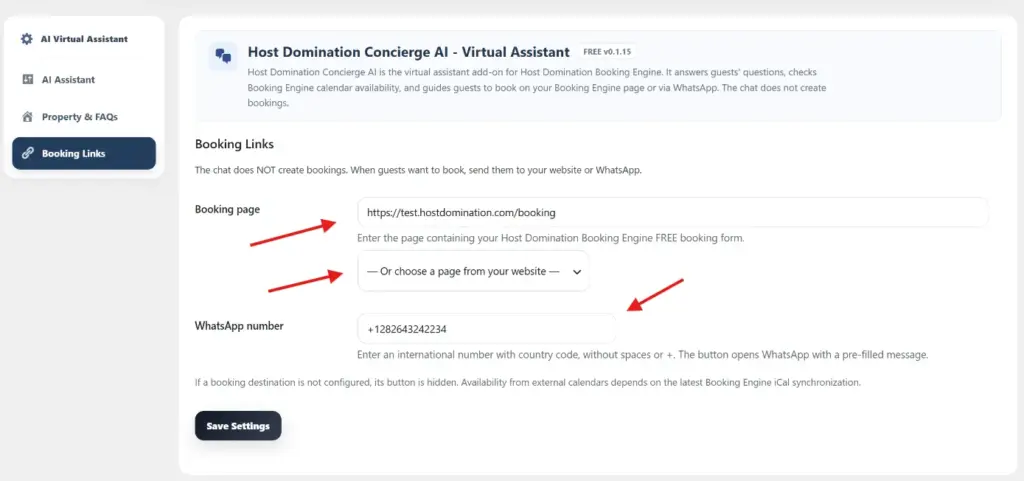
Open the section Booking Links.
This screen allows you to choose where to direct guests when they want to make a reservation.
6.1 – Booking page
In the field Booking page Enter the full address of the page that contains the Host Domination Booking Engine booking form.
For example:
Alternatively, you can use the drop-down menu to directly choose an existing page on your WordPress site.
When a visitor wants to book, the assistant can direct them to this page.
6.2 – WhatsApp number
In the field WhatsApp number enter the WhatsApp number on which you want to receive requests.
Use the international format, including country code, no spaces, and no symbol +.
For example:
393471234567
If you’ve configured the number, the visitor will be able to use the Book via WhatsApp, which opens WhatsApp with a pre-filled message.
You can configure both destinations to give your guests more freedom of choice.
When you have completed the fields, click Save Settings.
Important: Concierge AI does not directly create bookings within the chat. It can consult availability through the Booking Engine and guide the guest to the booking form or WhatsApp.
For free/busy schedules from external calendars, the update depends on the iCal synchronization of the Booking Engine.
STEP 7 – Check the chat
Once the setup is complete, it’s time to check that everything is working properly.
- Open your WordPress site like a regular visitor.
- Locate the Floating Assistant button.
- Click to open the chat window.
- Write a test question.
- Verify that the answer matches the information you entered.
For example, you can ask:
“Are pets allowed?”
If you have indicated in the FAQ that small pets are allowed for an additional fee of €20, the assistant should provide this information.
Also try:
“What time is check-in?”
The assistant should respond using the times entered in the facility setup.
Finally, you can ask:
“How can I book a room?”
Check that the assistant correctly points to the booking page or WhatsApp.
How does the chat appear to guests?
The Assistant window includes:
- Customizable title and assistant icon.
- Organized messages in a conversation.
- Customizable colors.
- Field to write questions.
- Button Send to send messages.
- Buttons Book via WhatsApp e Book on our website, when configured.
- A short warning reminding you that AI responses may contain errors.
The interface is designed to be used by both computers and smartphones.
STEP 8 – Use AI Concierge with international guests
Concierge AI can also respond to requests written in different languages, based on the capabilities of the selected AI model.
For example, an Italian visitor may ask:
“Is parking free?”
An English guest:
“Is parking free?”
Or a French visitor:
“Le parking est-il gratuit ?”
The assistant can use the information from the facility to formulate a response in the visitor’s language.
For best results, make sure that the structure texts are clear and complete.
The language of chat replies is distinct from the language of the plugin’s administrative interface.
Frequent problems and solutions
Chat does not appear on the site
Check that Enable chat on the website is active and that the Show the floating button on all public pages is enabled.
If you have disabled the global button, check that you have correctly inserted the shortcode on the desired page.
API key isn’t verified
Check that the key has been copied correctly and that the selected template is available for your Google project.
You can check the status of your keys directly in Google AI Studio.
Chat shows API limits error
You may have reached the daily limit configured in the plugin or a quota set by the provider.
In case of HTTP 429 error, check the template quotas and wait for the reset, if your plan is in place.
The assistant provides wrong information
Check the fields Useful information e Frequently asked questions.
Correct any incomplete or contradictory information and retest.
Remember that, like all AI-based systems, the assistant can make mistakes.
Booking buttons don’t appear
Check that you have filled in the booking page and/or WhatsApp number in the Booking Links.
If a target is not configured, its button can be hidden.
Your virtual assistant is ready!
With Host Domination Booking Engine – Concierge AI Virtual Assistant, you can give your site visitors a smart way to get information, check availability, and easily reach direct booking channels.
The add-on is free and can also be configured using a Gemini template that is compatible with Google’s free API tier, subject to the provider’s limits and conditions.
A comprehensive configuration of property information and FAQs helps improve the guest experience and reduce repetitive requests.
Discover Host Domination Booking Engine and all add-ons available at hostdomination.com.