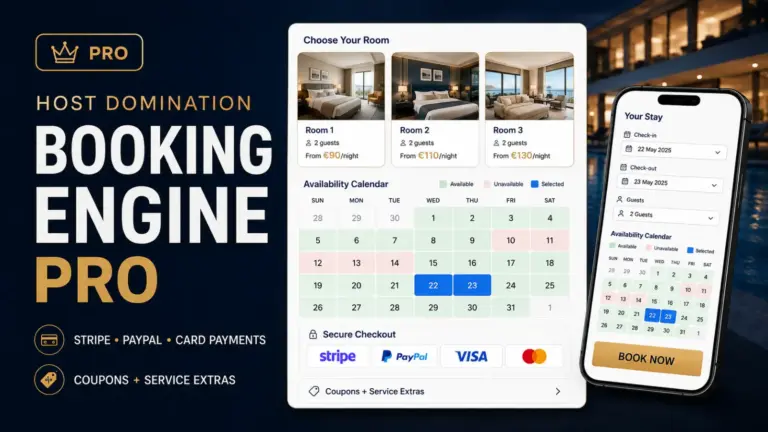

Host Domination Booking Engine It can be installed on your smartphone or tablet as Web App, allowing you to quickly access the management system directly from the Home screen.
You don’t need to download an app from the Google Play Store or App Store.
Once installed, the Web App can be opened through its icon and used in a very similar way to a normal application.
In this guide, we’ll look at how install Host Domination Booking Engine as a Web App on Android, iPhone and iPad, using the most popular browsers:
- Google Chrome
- Safari
- Mozilla Firefox
- Microsoft Edge
- Opera
We’ll also look at how to fix the most common issues when the button Install apps o Add to Home screen does not appear.
What is the Host Domination Booking Engine Web App?
A Web App is a web-based application that can be opened directly from your device’s home screen.
Unlike a normal page saved as a favorite, a compatible Web App can be used in a more similar way to an installed application.
Google describes Web Apps as web applications that can be opened from the Home screen and that, when supported, can offer additional features such as notifications, offline storage, and badges on the icon.
With Host Domination Booking Engine you can therefore have quick access to your booking system directly from your phone.
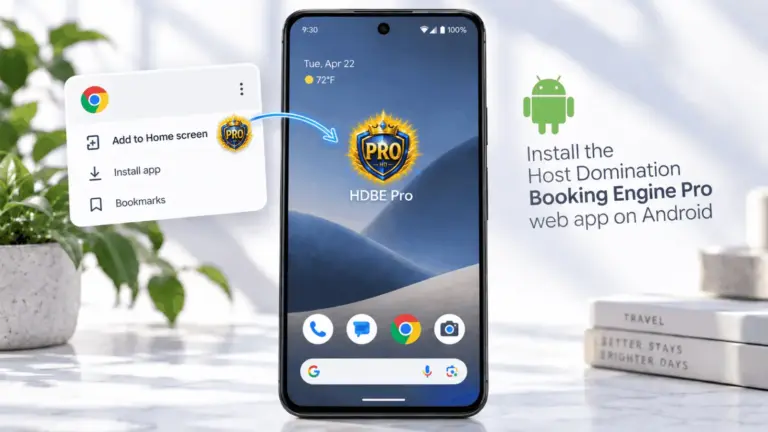
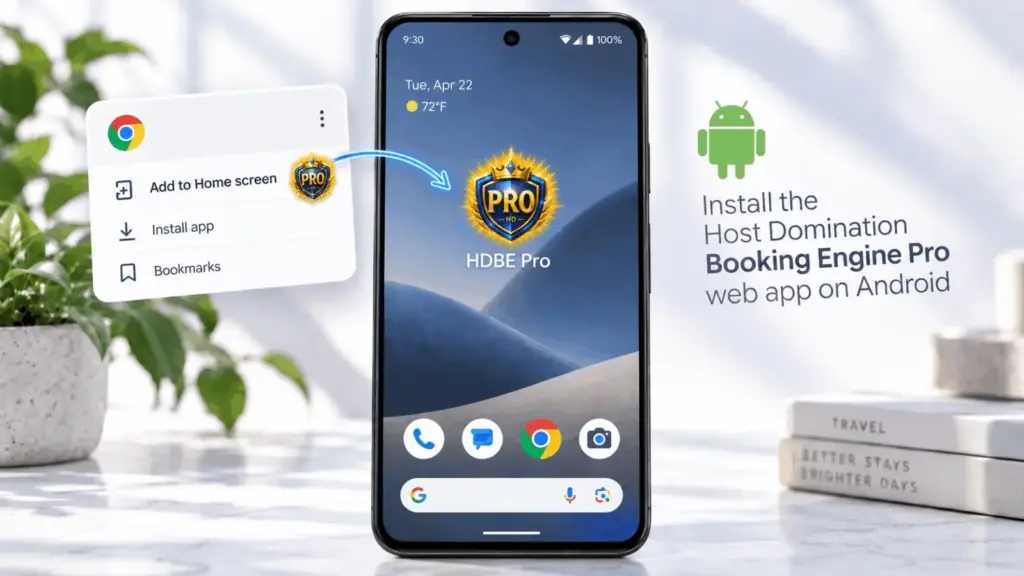
Install Host Domination Booking Engine as a Web App on Android
On Android we mainly recommend Google Chrome.
You can also use Firefox, Opera, and other compatible browsers.
Install on Android with Google Chrome
Open Google Chrome on your Android smartphone or tablet.
Go to the page on your site where you’re using Host Domination Booking Engine.
Subsequently:
- Press the menu ⋮ in the upper right;
- search for the installation entry;
- select Install apps;
- Confirm the installation when prompted.
In recent versions of Chrome, the entry can be found within:
⋮ → Install and create shortcut → Install
Google officially indicates this procedure to install a Web App on Android.
After the installation is complete, you will find the Web App icon on the Home screen or in the list of applications.
Pressing the icon will allow you to quickly open Host Domination Booking Engine.
“Install app” or “Add to Home screen”?
The wording displayed may change depending on the browser, the version installed and the characteristics of the page.
You might find, for example:
Install apps
or:
Add to Home screen
or again:
Install and create shortcut
If it is shown Install apps, we recommend using this option.
A Web App installed as an application can in fact work in a more integrated way than a simple connection.
Install Host Domination Booking Engine with Firefox on Android
Mozilla Firefox supports the installation of Web Apps on Android.
Open Firefox and visit the page from which you use Host Domination Booking Engine.
Subsequently:
- Press the menu ⋮;
- select Install, if available;
- Firefox will show the screen to add the app to Home;
- Choose where to place the icon or press Add Automatically.
Mozilla documents this procedure specifically for Web Apps on Firefox Android.
Firefox shows “Add to Home Screen” instead of “Install”?
It can happen.
In this case:
- Open menu ⋮;
- Search Add to Home screen;
- confirm the name;
- Awards Add.
Firefox also allows you to manually create a shortcut to your Home screen.
Install Host Domination Booking Engine with Opera on Android
Also Opera for Android allows you to add a site to the Home screen.
Open Host Domination Booking Engine with Opera.
Subsequently:
- Open the browser menu.
- select Add to;
- Choose the option to add the page to the Home screen;
- confirm.
Opera officially indicates that from the menu you can choose whether to add a page to your favorites, to the browser’s home page or to the device’s Home screen.
Install Host Domination Booking Engine on iPhone and iPad
On iPhone and iPad We recommend installing via Safari.
The procedure allows you to transform the site into a real Web App added to the Home screen.
Install on iPhone and iPad with Safari
Open Safari on your iPhone or iPad.
Go to the Host Domination Booking Engine page you want to use as a Web App.
Subsequently:
- Open the page menu or press Share;
- scroll through the list of actions;
- select Add to Home screen;
- Abilities Open as Web App;
- Awards Add.
The icon will be added to your Home screen.
Apple indicates that a page added in this way can be opened and used as an application.
From that moment on, we recommend opening Host Domination Booking Engine directly from the new icon.
Not “Add to Home Screen” on iPhone?
If you’re using Safari but don’t see the entry:
Add to Home screen
Open menu Share and scroll to the bottom.
If you still don’t see the option:
- select Edit Actions;
- Search Add to Home screen;
- add it to the available actions;
- return to the previous screen;
- Select again Add to Home screen.
This possibility is provided directly from Safari.
Why do we recommend Safari on iPhone?
For the installation of the Web App on iPhone and iPad we recommend Safari, because it is the path provided directly by iOS to add a page to the Home screen and open it as a Web App.
Once added, you can open Host Domination Booking Engine directly from its icon without having to search for it in the browser every time.
Can I install the Web App from Chrome on iPhone?
Browsers work differently on iPhone than on Android.
To avoid incompatibilities and make the procedure easier, we recommend that you install via Safari.
You can continue to use other browsers for normal browsing, but we recommend Safari to create the Host Domination Booking Engine Web App.
Install Host Domination Booking Engine with Microsoft Edge
Microsoft Edge supports installing websites as applications, especially on desktop systems.
On Edge, you can find options like:
Install apps
or:
Install this site as an app
Microsoft documents the ability to turn a website into an application directly from Edge.
The exact position of the voice can change between mobile and desktop versions.
On Android devices, if Edge doesn’t clearly show the option, we recommend using Google Chrome for the initial installation of the Web App.
How to install Host Domination Booking Engine as a Web App on PC
The Web App can also be installed from a computer.
This allows you to open Host Domination Booking Engine in a dedicated window, with its own icon.
Install on PC with Google Chrome
Open Host Domination Booking Engine in Google Chrome.
Subsequently:
- Open menu ⋮;
- select Cast, save and share;
- select Install this page as an app.
On some sites, an install icon may appear directly in the address bar.
Google documents both modes.
Installation on PC with Microsoft Edge
Open Host Domination Booking Engine with Microsoft Edge.
Subsequently:
- Awards …;
- Open Other tools;
- select Applications;
- Awards Install this site as an app.
After installation, you can manage Edge applications via:
edge://apps
From this screen, you can also add the app:
- to the Start menu;
- to the taskbar;
- to the desktop.
Microsoft describes these features in its official documentation.
“Install app” option doesn’t appear on Android
If you’re using Chrome but don’t see the Install apps, perform these checks.
1. Update Google Chrome
Open the Google Play Store and make sure Chrome is up to date.
Menu items may change between versions.
In recent versions of Chrome, you can find:
⋮ → Install and create shortcut
and subsequently:
Install
2. Check all the menu
The voice may no longer be called:
Add to Home screen
Instead, you might find:
- Install apps
- Install
- Install and create shortcut
- Create Shortcut
The name depends on the browser version and the type of page.
3. Open the Booking Engine page directly
Avoid installing from the homepage of the site if you want the Web App to open directly in the section used to manage reservations.
Open the desired page first and then use the browser’s installation feature.
4. Don’t use Incognito mode
Open the site in a regular browser tab.
Private or Incognito modes can limit some persistent browser features.
5. Check that the site uses HTTPS
Modern web functionality, including many features typical of Progressive Web Apps, requires a site served over a secure HTTPS connection.
Then check that the address starts with:
https://
I have installed the Web App but it opens like a normal site
The behavior depends on the browser and the type of installation performed.
A simple:
Add to Home screen
can only create a shortcut.
An option like:
Install apps
instead, it can install the page as a real Web App.
For this reason, when available, we recommend always using:
Install apps
instead of just creating a link.
The Web App icon does not appear on the Home page
On Android, check out the full list of applications as well.
On some devices, the app can be installed correctly without being automatically placed on the first Home screen.
You can then:
- open the list of applications;
- search for Host Domination Booking Engine;
- press and hold the icon;
- drag it to the Home screen.
Android won’t let me add new icons
Some Android launchers may have the Home screen layout locked.
If your browser confirms the installation but no icon appears, check your Home screen settings and make sure the layout isn’t locked.
The designation varies depending on the smartphone manufacturer.
The Web App is installed but notifications do not work
Installing the Web App and authorizing notifications are two different operations.
After installing Host Domination Booking Engine:
- open the Web App;
- wait for the eventual popup for notifications to be activated;
- Awards Enable notifications;
- select Allow when the operating system requests permission.
If you’ve previously blocked notifications, you may need to manually turn them back on from your device’s settings.
For this topic, see our dedicated guide:
How to turn on and troubleshoot Host Domination Booking Engine notifications.
The Web App does not update
Host Domination Booking Engine is a Web App and content is normally loaded from your WordPress site.
If you continue to see an older version after an update:
- close the Web App completely;
- reopen it;
- check your internet connection;
- update the browser used to install it;
- if necessary, clear the browser cache;
- as a last resort, remove and reinstall the Web App.
How to uninstall the Web App on Android
On Android, you can normally remove the Web App as a normal application.
Press and hold the icon and select:
Uninstall
or open:
Settings → App
and locate the Web App.
Google indicates that Web Apps installed with Chrome can be removed from the normal settings of Android applications.
How to remove the Web App from iPhone or iPad
Touch and hold the Host Domination Booking Engine icon on the Home screen.
After that, use the remove app option from the screen.
You can always reinstall it later by following the procedure again with Safari.