
Activate your AI virtual assistant on the WordPress site using Google Gemini, even without a paid subscription.
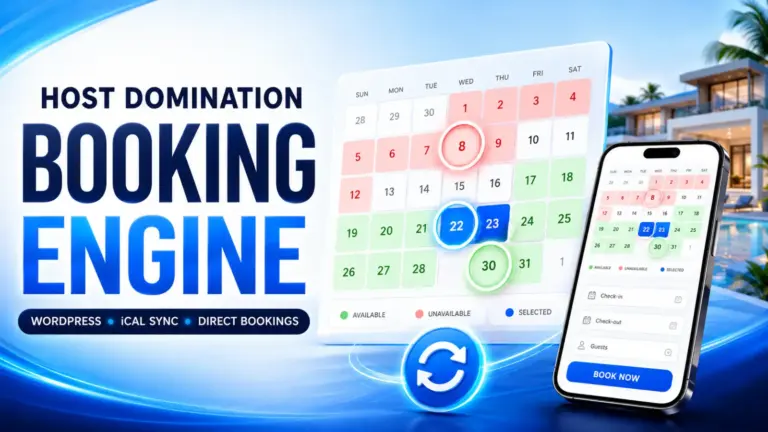
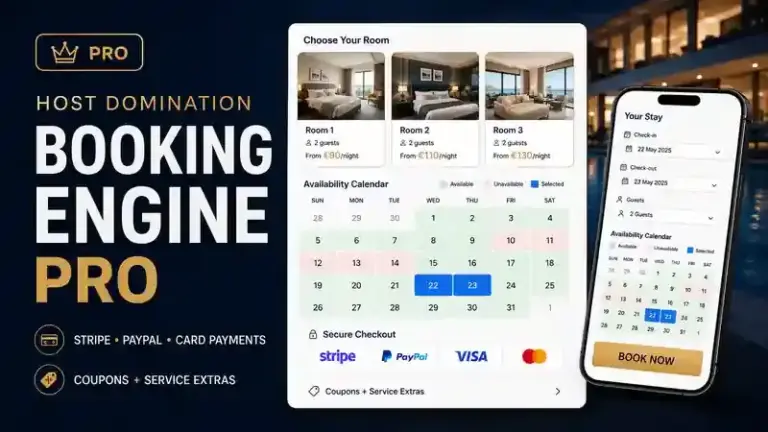
Host Domination Booking Engine integrates Concierge AI – Virtual Assistant, an intelligent virtual assistant that can automatically answer guests’ questions, provide information about the accommodation, consult room availability and direct visitors to the reservation.
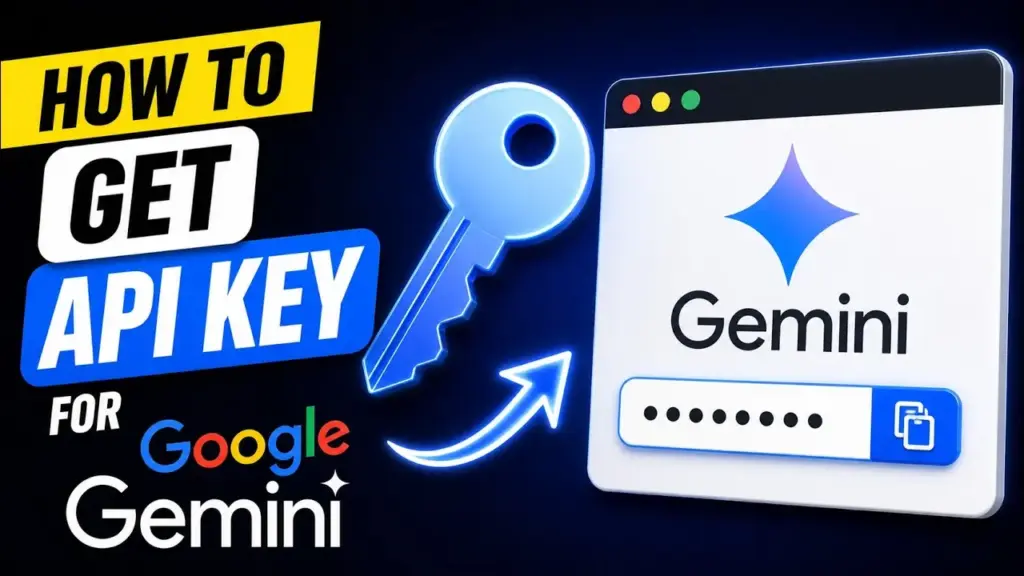
To use the assistant, you need a Google Gemini API Key, i.e. a key that allows the plugin to communicate with Google’s artificial intelligence.
The good news? Google offers a free API plan, with some models and usage limits.
In this guide, we explain how to get your key and set it up on the site in a few simple steps.
STEP 1 – Sign in to Google AI Studio
Open the following official link:
👉 Open Google AI Studio – Get API Key
Sign in using your Google account (e.g. Gmail).
If this is your first time using Google AI Studio, you may be asked to accept the terms and conditions of service.
You don’t need to purchase a Gemini subscription to start using the free API plan.
STEP 2 – Create your free API Key
Once you’re logged in, you’ll be in the API keys section.
- Look for the button Create API Key (Create API Key).
- If prompted, select an existing Google Cloud project or create a new one.
- Confirm the creation of the key.
- Google will generate your API Key.
Note: If it’s your first time signing in, Google AI Studio may have already automatically created a project and API key. In this case, you can use the existing one.
STEP 3 – Copy your API key
After creation, you will see a key made up of a long sequence of letters and numbers.
Click the button to copy it.
Important: The API key is personal. Don’t share it publicly or place it on web pages that visitors can see.
Save it for the next step.
STEP 4 – Set up AI Concierge on WordPress
Now log in to your WordPress site’s admin panel.
- Open Host Domination Booking Engine.
- Enter the section Concierge AI.
- Select AI Assistant from the side menu.
- Locate the field dedicated to the Google Gemini API Key.
- Paste the key copied from Google AI Studio.
- If necessary, select Google Gemini as your AI provider and a model that is compatible with the free plan.
- Save your settings and enable the assistant.
Your API Key is now configured.
STEP 5 – Customize your virtual assistant
To make Concierge AI truly useful to your guests, complete the other sections available in the plugin as well.
Property & FAQs
Enter key information about your property, such as:
- Check-in and check-out times.
- Address and directions to reach the property.
- Wi-Fi and amenities available.
- Parking, pets and house rules.
- Answers to frequently asked questions.
Booking Links
Set up the links through which guests can make a booking, either directly on your website or via WhatsApp.
The assistant can thus accompany the visitor in the choice, without making the reservation directly in the chat.
STEP 6 – Check that everything is working
Open your website like a regular visitor and locate the virtual assistant button.
Start a conversation and try typing:
“Hello! What time can I check in?”
Or:
“Do you have availability for two people next weekend?”
If the setup is correct, Concierge AI will process the request using Gemini and the information available in the Booking Engine and facility setup.
Is Google Gemini really free?
Yes, Google offers a free plan for Gemini APIs, but it is important to know some conditions:
- The free plan is only available for certain AI models.
- The number of requests and the tokens that can be used are limited.
- Limits may change depending on the Google model and project.
- To get higher limits, you may need to activate a paid plan.
You don’t need to turn on paid billing to get started with the free plan, if your account and the model you select are eligible.
You can check the available limits directly on Google AI Studio and consult the Official Gemini Rates.
Attention to privacy: Google indicates that content transmitted through the free API tier can be used to improve its products. Therefore, avoid sending unnecessary personal or confidential information, and check the terms of service before activating it for guests.
Frequent problems and solutions
The Assistant shows an error message or is not responding.
Check that you have copied the API key correctly, that the selected template is available in your project, and that the WordPress server can communicate with Google.
An error about usage limits appears (429).
You may have reached one of the free plan limits. Check the quotas in your Google AI Studio account and try again when they’re available again.
Google requires you to set up a payment method.
Check that you haven’t selected a model or usage tier that requires billing. Don’t activate a paid plan if you want to use free resources exclusively.
I changed API Key. Do I need to reinstall the plugin?
No. Simply replace the key in the Concierge AI settings, save and check the operation again.
Your virtual assistant is ready!
With Host Domination Booking Engine – Concierge AI Virtual Assistant, you can offer your site visitors intelligent support for frequently asked questions, facility information, and availability search.
Thanks to the Google Gemini API, you can start experimenting with this feature even with the free plan, without necessarily having to sign up for an AI subscription.
See all Host Domination Booking Engine features on hostdomination.com.
Guide updated October 2026. Free plan features, template availability, and terms are set by Google and may change over time.