
Are you having problems with theEnabling HDBE notifications? Follow this guide to fix.
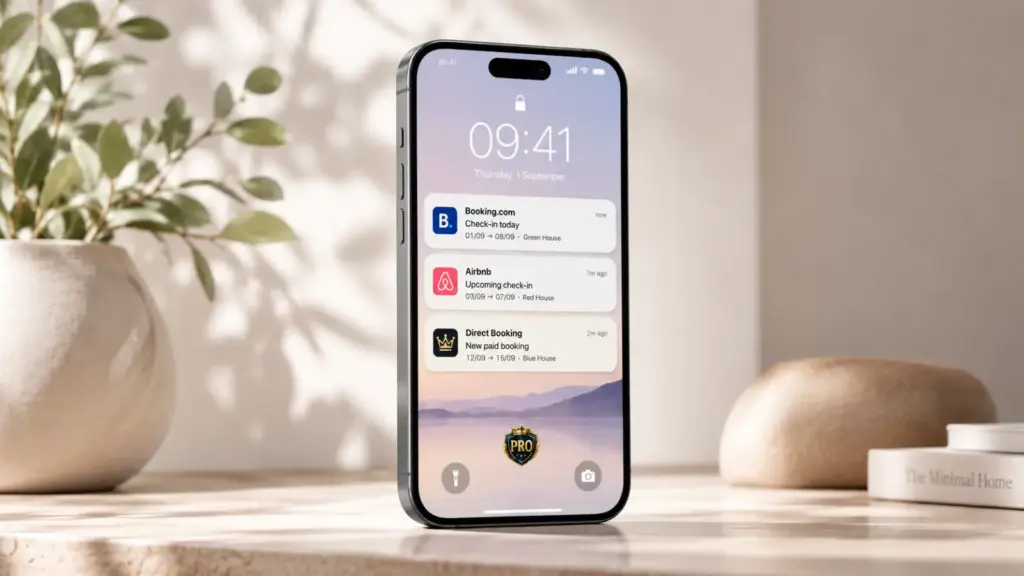
The Host Domination Booking Engine push notifications They allow you to quickly receive alerts on your smartphone, tablet or computer about the activities of your booking system.
Activation is usually very simple and, especially from smartphones, takes only a few seconds.
In this guide we will first see how to turn on notifications on Android, iPhone and iPad and, subsequently, how to configure them on a computer.
Activating smartphone notifications: what to do when you first log in
When you first access Host Domination Booking Engine from smartphones, a message may automatically appear inviting you to Enable notifications.
The first thing to do is simply accept
When you see the popup:
Enable notifications
Press the button to proceed.
Later, your browser or operating system may show you a second permission request.
When it appears, select:
Allow
Under normal conditions No additional configuration required.
Once permission is granted, Host Domination Booking Engine will be able to use push notifications on the device.
Important: Do not select Block when your browser or phone asks you for permission to notifications. If permission is denied, you may need to manually turn it back on from your device’s settings.
The pop-up doesn’t appear or notifications don’t fire?
If the pop-up doesn’t appear, if you’ve closed the request, or if the activation fails, you can manually turn on notifications.
On your smartphone, log in to your WordPress Dashboard and open:
Host Domination Booking Engine → Web App
Then locate the box:
Push Notifications
and press the button to enable them.
When your browser asks for your permission, select:
Allow
If you still can’t receive notifications, continue with the checks below.
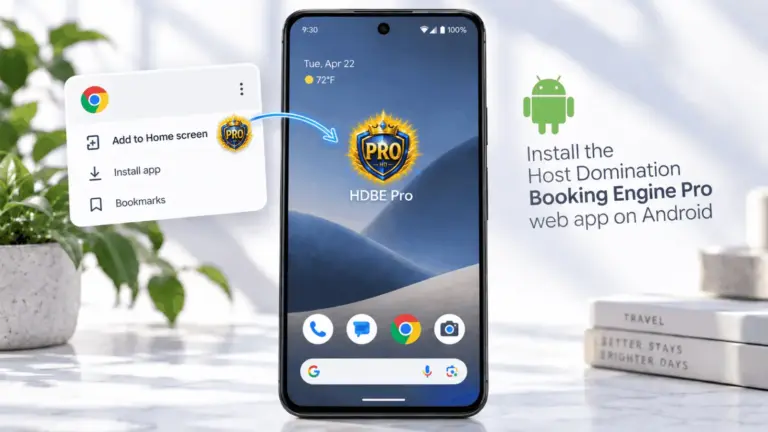
How to turn on notifications on Android
On Android We recommend first of all to use a modern and up-to-date browser, such as:
Google Chrome, Mozilla Firefox or Opera.
When you log in to Host Domination Booking Engine:
- Accept the popup Enable notifications;
- When Android or your browser asks for permission, select Allow;
- continue to use Host Domination Booking Engine as normal.
In most cases, you don’t need to do anything else.
Notifications not working on Android?
If you’ve accepted the pop-up but aren’t receiving warnings, you’ll need to check two permissions:
- the permission granted to the site in the browser;
- the permission granted to the browser in the Android settings.
Check Site Permission
Open Host Domination Booking Engine in the browser you normally use.
Check your site permissions and make sure that:
Notifications → Allow
is active.
With Google Chrome, you can also control from:
Chrome → Settings → Site Settings → Notifications
Make sure that your site’s domain isn’t blocked.
Check notifications in Android settings
Even if you have successfully authorized the site, Android can prevent the browser from showing notifications.
Open:
Settings → Chrome → apps → notifications
or select the browser you’re using.
The route may vary slightly depending on the smartphone manufacturer.
Make sure notifications are enabled.
If Android blocks browser notifications, Host Domination Booking Engine won’t be able to show them even if the site has been properly authorized.
How to turn on notifications on iPhone and iPad
On iPhone and iPad We recommend using Host Domination Booking Engine through its Web App.
A Web App allows you to use Host Domination Booking Engine in a similar way to a normal application, directly from the Home screen.
When you access the Web App:
- open Host Domination Booking Engine;
- Wait for the popup to appear Enable notifications;
- Press the button to proceed;
- When iOS asks for permission, select Allow.
If the permission is granted correctly, no further configuration is required.
The complete procedure to install Host Domination Booking Engine as a Web App on iPhone, Android and computer will be covered in a dedicated guide.
Notifications not working on iPhone or iPad?
If the Web App is installed but you are not receiving notifications, first check the permissions of the device.
Open:
Settings → Notifications
and search for the Host Domination Booking Engine Web App.
Check that:
Allow notifications
is active.
Also check that any modes such as:
- Full immersion
- Do Not Disturb
- Personalized Focus Modes
are not temporarily hiding the warnings.
Then reopen the Web App and try to enable notifications again.
Did you press “Lock” by mistake?
If during the first activation you selected Block, Host Domination Booking Engine may not be able to show you the prompt again automatically.
In this case, you need to manually change the permission in your browser or device settings.
After setting it up again:
Notifications → Allow
back to:
Host Domination Booking Engine → Web App → Push Notifications
and try enabling them again.
The “Enable notifications” button doesn’t work
If you press Enable notifications but no prompt appears, first check if the browser has already memorized a previous choice.
For example, your site might already be set to:
Notifications → Block
Also check:
- that the browser is up to date;
- JavaScript is enabled;
- that the site uses HTTPS;
- that the browser has permission to show notifications;
- that there are no extensions that block scripts or notifications;
- that private or incognito browsing is not active.
Once you’ve corrected any permissions, refresh the page and try again.
Notifications worked but stopped coming
If you were previously receiving notifications correctly and suddenly they don’t arrive, try these checks:
- reopen Host Domination Booking Engine;
- check the permission of notifications;
- check the operating system settings;
- Check that Do Not Disturb o Full immersion are not active;
- Refresh your browser.
- Disable and re-enable notifications from the Web App → Push Notifications.
Also, make sure that you’re always using the same domain that you previously authorized notifications with.
Turn on Host Domination Booking Engine notifications from your computer
Host Domination Booking Engine can also send notifications on PC and Mac.
The procedure is similar to that used on smartphones.
Log in to your WordPress Dashboard and open:
Host Domination Booking Engine → Web App
In the box Push Notifications, awards:
Enable notifications
When the browser shows the permission prompt, select:
Allow
If notifications are allowed correctly, no further configuration is required.
How to enable notifications on Google Chrome from PC
If you use Google Chrome:
- Open the site you use Host Domination Booking Engine on.
- Open the site’s information or settings from the address bar.
- Locate Notifications;
- Set the permission to Allow;
- Refresh the page.
You can also check from:
Chrome → Settings → Privacy & Security → Site Settings → Notifications
Make sure that the domain isn’t on the blocked list.
How to enable notifications on Mozilla Firefox from computer
If you use Mozilla Firefox, open:
Firefox → Settings → Privacy & Security → Permissions → Notifications
Check the domain you’re using Host Domination Booking Engine on.
The permission must be set to:
Allow
If the site is locked, change the permission and then update Host Domination Booking Engine.
How to check notifications on Windows
If you’re using Windows, your operating system must also allow your browser to show notifications.
Open:
Settings → System → Notifications
Check that:
- Windows notifications are enabled;
- Chrome, Firefox, Opera, or the browser you are using may show notifications;
- Do Not Disturb isn’t blocking alerts.
How to check notifications on macOS
On Mac open:
System Settings → Notifications
Find Safari, Chrome, Firefox, or the browser you’re using.
Make sure your browser has permission to show notifications.
Which browser to use with Host Domination Booking Engine?
For the best compatibility, we recommend using a modern, up-to-date browser.
You can use:
- Google Chrome
- Mozilla Firefox
- Safari
- Opera
Keep both your browser and operating system up to date at all times.
On iPhones and iPads, we also recommend using Host Domination Booking Engine as a Web App.
Frequently asked questions about Host Domination Booking Engine notifications
How do I turn on notifications on my smartphone?
On first access rewards Enable notifications in the popup shown by Host Domination Booking Engine and then select Allow when your phone or browser asks for permission.
In most cases, you don’t need to do anything else.
Why doesn’t the “Enable notifications” pop-up appear?
Your browser may have already stored a previous permission or a previous rejection.
You can still try to activate them manually from:
Host Domination Booking Engine → Web App → Push Notifications
I pressed “Lock”. How do I do that?
You must manually change the permission of the site or web app in the browser or device settings.
Setup:
Notifications → Allow
and then try again to enable them in Host Domination Booking Engine.
Can I get notifications on Android?
Yes. Accept the pop-up shown by Host Domination Booking Engine and allow notifications when Android or the browser prompts you to.
Can I get notifications on iPhone?
Yes. We recommend using Host Domination Booking Engine such as Web App and allow notifications when prompted by iOS.
Do I have to leave Host Domination Booking Engine always open?
No. Push notifications are designed to allow you to receive alerts without having to keep the Booking Engine page open all the time.
However, the behavior may depend on the browser and operating system settings.
Should I download an app from the Play Store or App Store?
No.
Host Domination Booking Engine can be used as a Web App, without having to install a traditional application from the Play Store or App Store.
Still having trouble with notifications?
If you’ve followed all the steps but still aren’t receiving notifications, check these two levels in particular:
Browser/Web App → Notifications → Allow
e:
Operating System → Notifications → Browser or Web App → Allow
Then reopen:
Host Domination Booking Engine → Web App → Push Notifications
and try enabling them again.
Remember that Host Domination Booking Engine cannot override a permission denied by the browser or operating system.
Once you’ve configured your permissions correctly, you’ll be able to use the Host Domination Booking Engine push notifications to receive alerts related to your booking system directly on smartphones, tablets and computers.